System Browser Support for OAuth 2.0
Bruno provides a System Browser option for OAuth 2.0 Authorization Code authentication, allowing you to use your default system browser instead of the embedded Electron browser window.
Enabling System Browser
Global Configuration (Recommended)
If you want to use Bruno System Browser OAuth2 for all your collections in workspace, you can enable it from Preferences. This will make System Browser available for the entire collection by default.
- Navigate to Preferences (located at the bottom of the left sidebar)
- Go to the General section
- Enable Use System Browser for OAuth2
- This setting will apply to all collections by default
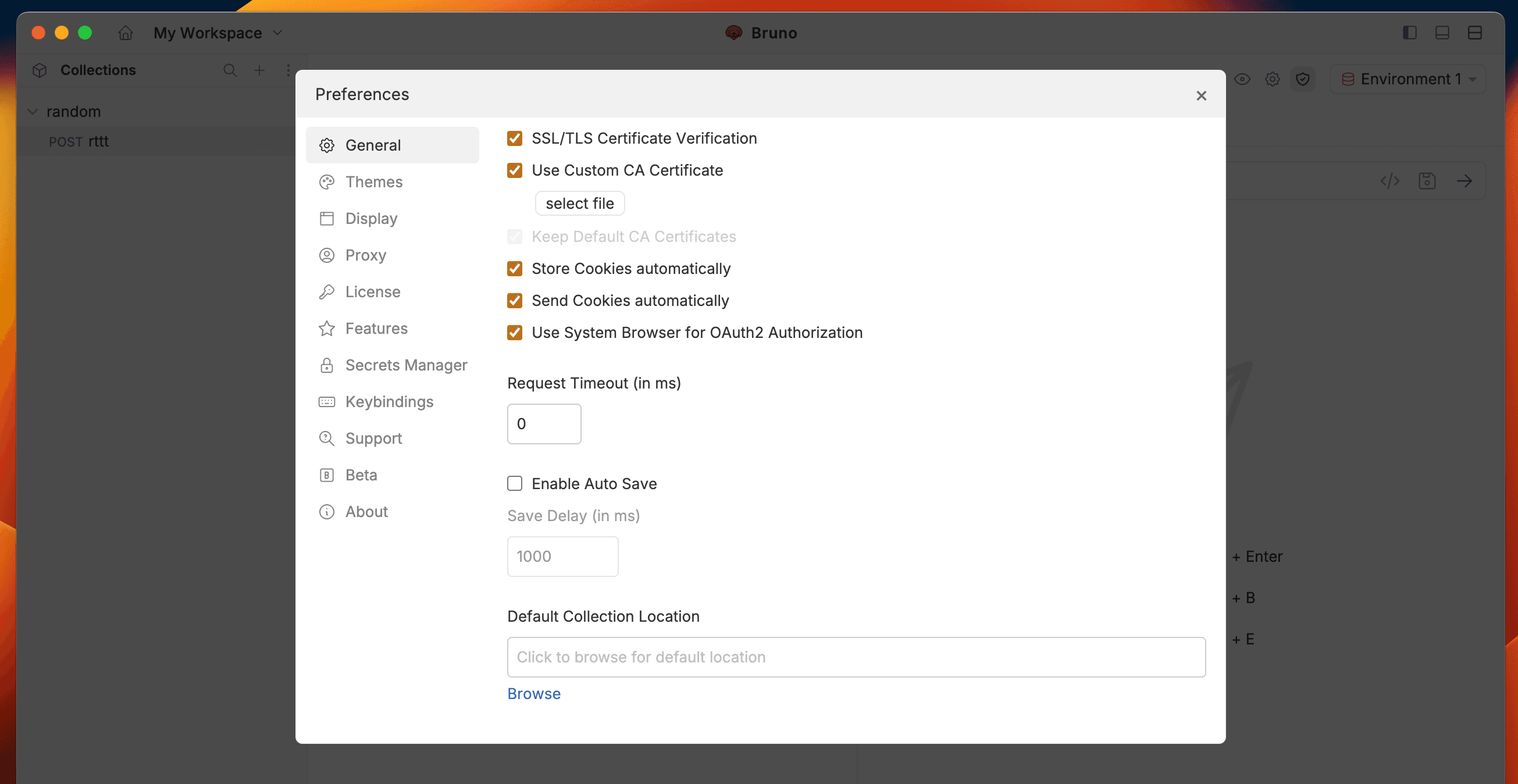
General Configuration
- Navigate to the Auth tab at (request, folder or collection) level and selecet OAuth 2.0 as authentication method
- Under Callback URL, select the Use System Browser for OAuth option
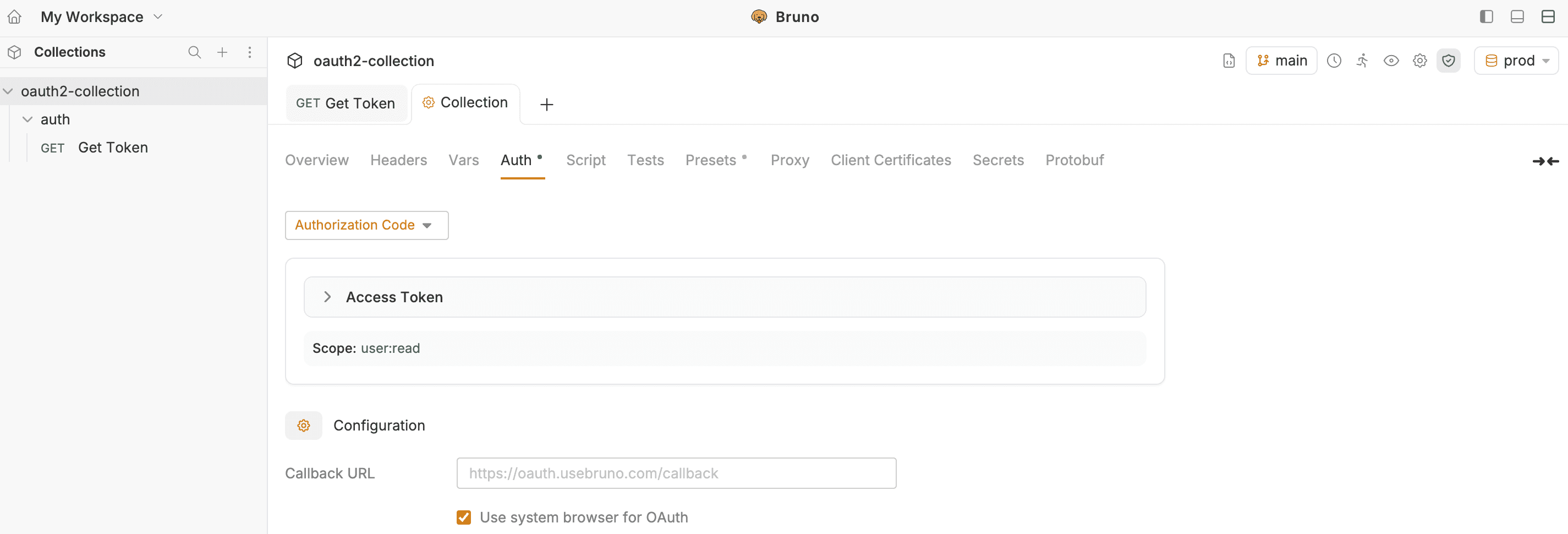
The Inbuilt browser option is selected by default, maintaining existing behavior for users who prefer the embedded browser.
How It Works
When you select the System Browser option, the OAuth flow proceeds as follows:
- Authorization Request: Bruno initiates the OAuth flow and opens your system browser
- User Authentication: You authenticate in your system browser with your OAuth provider
- Callback Redirect: The authorization server redirects to the configured callback URL:
https://oauth.usebruno.com/callback - Deep Link Trigger: The callback page redirects to Bruno’s custom URL scheme:
bruno://app/oauth2/callback - Token Exchange: Bruno receives the authorization code and:
- Validates the
stateparameter - Performs the authorization code + PKCE token exchange locally
- Stores the access token securely
- Validates the
All OAuth data remains on your machine. Tokens are never processed or stored by Bruno servers.
Custom Callback Server
You may use your own hosted callback server or self-host one. Bruno will treat any configured callback URL as the OAuth redirect endpoint.
Option 1: Hosted Callback Server
You can host your own callback server and configure that in Bruno. Bruno will use this custom callback endpoint to complete the OAuth flow securely within your network.
Configuration Steps:
- Host your own callback server at your domain
- Configure Bruno with your hosted callback URL:
https://your-domain.com/oauth/callback - Add the same URL to your OAuth provider’s allowed redirect URLs
Option 2: Run a Local Callback Server
If you have Node.js installed, you can quickly start a local callback server using:
npx @usebruno/oauth2-callback-serverThis command starts a local server that automatically forwards OAuth redirects to Bruno via the deep link mechanism.
Configuration Steps:
- Start the callback server using the command above
- Configure Bruno to use your local callback URL:
http://localhost:3000/oauth/callback - Add the same URL to your OAuth provider’s allowed redirect URLs
Ensure your OAuth provider allows localhost redirect URLs.